Software for Students
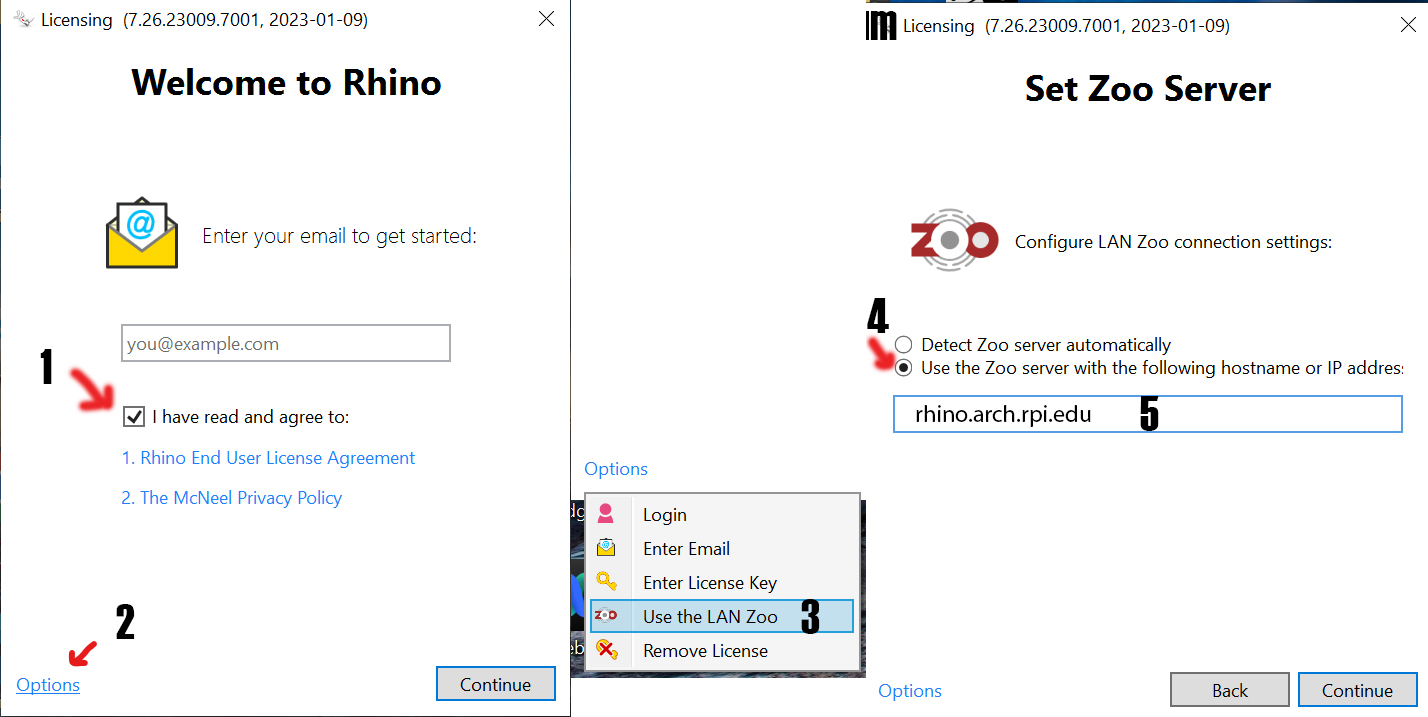
NOTICE: All Rhino licenses have been transitioned to a new license server. If you have trouble obtaining a Rhino license, please follow THESE STEPS to update your license server settings.
Cisco VPN Installation
To connect to RPI’s network from off-campus, launch the Cisco Secure Client and log in with your RPI credentials. It is pre-installed on RPI Mobile Computing laptops. You can also install it here. VPN installation is necessary for licensing Rhino and running V-Ray.
Rhino 8 Installation
System Requirements:
Rhino 8 requires 64-bit Windows 11, 10, 8.1, or 7. It won’t work with Windows 8, Windows XP, or any 32-bit Windows version. Rhino 8 is available for MacOS users, but it does not support V-Ray or other plug-ins.
Download the Rhino 8 installer from Box.com below:
[If you are unable to log into Box, make sure you have activated your Box account.]
PC: Rhino v.8.33 for Windows
Mac: Rhino v.8.33 for MacOS
Launch the installer. [It may take a few moments to launch, be patient.] Check the “Terms and Conditions” box, then click the gear icon next to “Install Now.” On the next screen, select “Zoo” from the “License Method” drop-down menu.
In the “Zoo server name or IP address” box, enter:
rhino.arch.rpi.edu
Click “Install Now.” Click “Close” when the installer completes.
Make sure you are connected to RPI’s network by wi-fi or VPN. On first launch, you may get an error that the license server was not found. If so, just re-enter the Zoo license server address, rhino.arch.rpi.edu.
V-Ray Installation
Download the V-Ray for Rhino installer here:
V-Ray for Rhino v.72002
Run the installer. Agree to the License Agreement and
Privacy Policy. Click “Continue.”
Check the box for Rhinoceros 7 or 8. Click “ADVANCED.”
Uncheck “License Server”
Uncheck “Swarm”
Click “Continue.”
On the Licensing page, Select “Remote”.
Set the Primary License Server to:
vray.arch.rpi.edu:30304
Leave the other license server fields blank.
Click “Install.”
Launch Rhino, go to Render > Current Renderer and select “V-Ray for Rhino.” You should be able to use V-Ray as long as you are connected to the campus network.
V-Ray Chaos Cloud Rendering
Rendering in Rhino using V-Ray cloud rendering service provides fast processing speeds, allowing you to render complex projects in less time, while freeing up your own computer for other tasks. Current students are eligible to use the School’s shared pool of rendering credits. You will need to create a V-Ray Chaos Cloud account using your RPI e-mail address. Students receive a default allocation of 100 credits at the beginning of each semester.
Students needing additional Cloud Credits may request to have an additional 100 credits added to their account for a total of 200 credits per semester by filling out this form. Students should use their credits wisely as they will not be able to add more once they have used 200 credits in a single semester.
Tips:
• Render your project on your computer at a small image size and evaluate the result before submitting a large cloud render job.
• Once your job is submitted, you do not need to keep your computer on or connected to the Internet for the job to complete.
• Quick video instructions on using Chaos Cloud Rendering in Rhino.
• Official documentation at V-Ray’s website.
Climate Studio Installation
Students enrolled in courses requiring Climate Studio can download the installer here:
Climate Studio
The professor of your course will provide the serial number.
Introductory videos on using Climate Studio can be found here.